 Coinstats
Coinstats CSV imports require manual updates to transaction records
Coinstats CSV imports load transaction history into a manual portfolio; a CSV-only portfolio needs another upload or manual entry for later trades. A supported format, correct field mapping, and accurate transaction types determine how the records appear. Importing a file alone doesn't establish an ongoing exchange connection.
A CSV upload records the history inside its file, so later trades need another import or manual entry to update holdings.
Transaction Files and Manual Portfolio Records
A transaction file supplies the history, the importer interprets its fields, and the portfolio stores the resulting records. An exchange CSV import appears as a manual portfolio in Coinstats. An available transaction export can supply history when an exchange lacks an automatic integration or when a connection omits older records.
CSV means comma-separated values. Its rows carry transaction information, while its columns identify the meaning of each value. Uploading those rows saves entering every transaction separately. The file's contents still determine the imported history: transactions outside the export's coverage can't become part of that history through the upload alone.
Trade Fields Keep Quantities and Prices Separate
The standard template has nine columns: Coin Symbol, Exchange, Pair, Type, Amount, Price, Fee, Date, and Notes. Amount identifies the transaction quantity; Price and Pair provide its trading context. Preserve the units that the original record uses when adapting an export. A trade's total consideration and its price per unit aren't interchangeable inputs.
Field mapping assigns the file's columns to the importer's expected fields. Matching by position alone can put a valid number into the wrong place. Keep the original export alongside the converted copy so you can compare their meanings. Missing acquisition prices need the original trade information; today's market price describes a different point in time.
Date interpretation affects the history's order, so preserve the export's timestamps and date convention when selecting an import format.
Transaction Types Preserve Different Events
A transaction type describes the event that the row records, so purchases, receipts, and rewards shouldn't collapse into one category. The template supports buy and sell records, sent and received movements, rewards, interest, borrowing, and repayment. It also includes staking and liquidity-related types. Those labels describe recorded activity; uploading them doesn't execute the underlying actions.
The template maps the balance transaction type to Fill. A balance entry and a purchase entry communicate different information. A holding quantity alone doesn't establish its acquisition price or reconstruct the trades that produced it. Keep the original event's meaning when choosing a type, especially when the export includes transfers alongside trading activity.
Web and Mobile CSV Entry Points
The web interface starts CSV imports through Portfolio and Connect Portfolio, where you select the relevant CSV option. On mobile, the route starts from the Portfolio tab's plus button, followed by Connect Portfolio and the exchange's CSV option. Select the importer that corresponds to the file you're using before submitting its records.
Custom Exchange provides an import route when the exchange isn't listed. Its template-based workflow involves preparing the transaction history, selecting the date format, matching the columns, and clicking Continue. A dedicated exchange importer can expect a different export layout. Changing the selected exchange just to bypass an error can therefore introduce a format mismatch.
A successful upload needs a record-level check. Compare the imported asset, quantity, type, date, and price with the original transactions. An acceptance message alone doesn't show whether an ambiguous field received the intended meaning.
Does a CSV Import Add New Exchange Trades Automatically?
A CSV-only portfolio needs another upload or manual transaction entry to include later exchange trades. Saving a newer export on your device doesn't change the records already stored in the portfolio. Manual transaction entry lets you select the asset, transaction type, amount, exchange, pair, and applicable fee. Use the existing manual portfolio when adding its missing activity. For another file import, check the destination and the history already recorded before combining the data. Price alerts concern market movements and don't supply missing transaction records.
A Later Purchase Changes the Recorded Quantity
In this hypothetical example, a file records a purchase of 2.73 units of a supported asset. A later purchase adds 1.13 units of the same asset. Assume both purchases have valid transaction details, with no sales, transfers, or fees that change that asset's quantity.
The correctly imported file initially records 2.73 units because it contains only the earlier purchase. The later purchase doesn't enter that CSV portfolio automatically. Adding it accurately through manual transaction entry brings the recorded quantity to 3.86 units: 2.73 + 1.13 = 3.86.
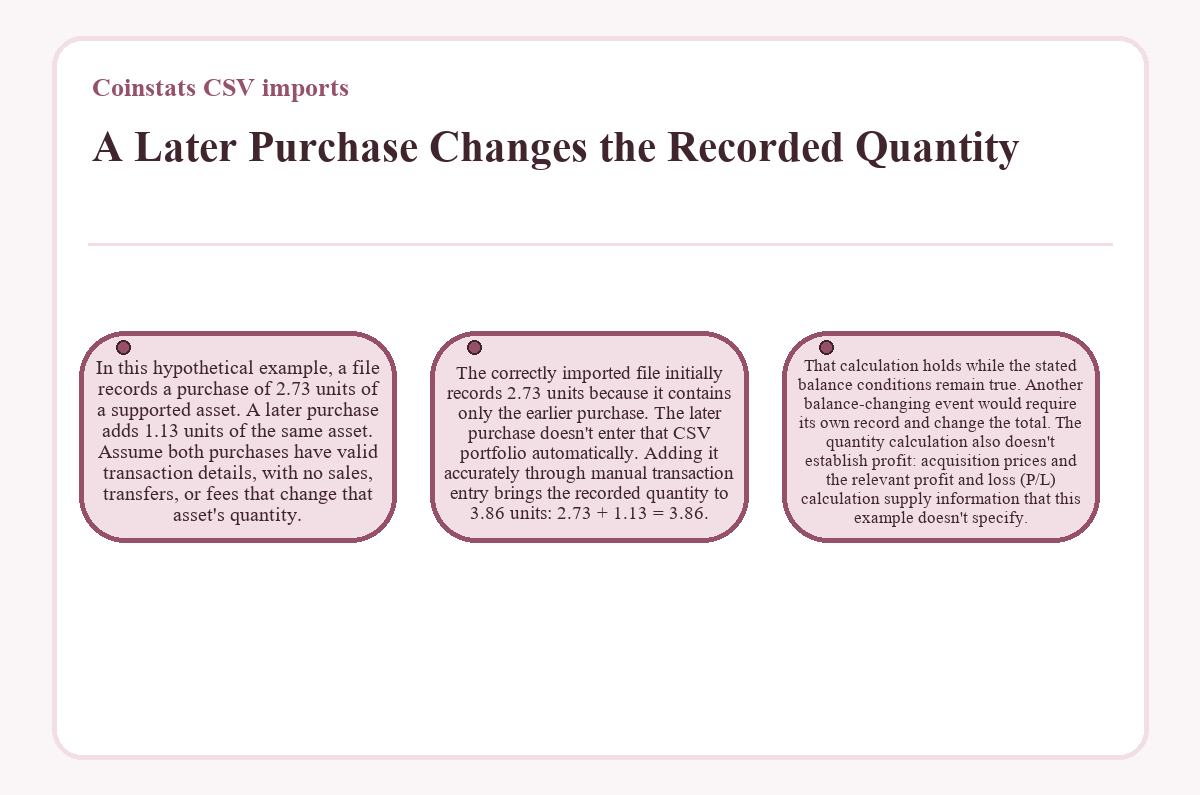
That calculation holds while the stated balance conditions remain true. Another balance-changing event would require its own record and change the total. The quantity calculation also doesn't establish profit: acquisition prices and the relevant profit and loss (P/L) calculation supply information that this example doesn't specify.
Overlapping Files Need a Single Record for Each Event
Overlapping export periods can include the same transaction in more than one file, creating an import-management problem. Compare the new file's coverage with the existing history before adding its records. A newer filename doesn't establish that its contents contain only new trades or that it replaces an earlier upload.
If the same event becomes separate transaction entries, the repeated records can distort holdings or performance calculations. Check the asset, event type, timestamp, amount, and available trade details before treating similar rows as duplicates. Similar-looking entries can also represent genuine separate events. Remove only a confirmed repeated record, and keep the underlying export for comparison.
Manual and Fill transactions support direct editing. On the web, select the affected record in Transactions, choose Edit, and save its changes. On mobile, use History, select the record, choose Edit, and tap Update. Keep the converted file consistent with any correction so another upload doesn't reuse the same incorrect input.
Non-overlapping files have the opposite risk: a gap between their covered periods can omit activity. Review coverage as well as overlap.
Why Can Holdings Match While Imported P/L Looks Wrong?
Matching holdings doesn't establish correct profit and loss because P/L also uses acquisition costs, sale information, and calculation settings. An import may record the correct quantity while missing an earlier purchase or using the wrong price denomination. Those errors affect the cost history behind the displayed result.
Coinstats matches earlier purchases with earlier sales when calculating realized costs. Missing historical buys can therefore affect later sale calculations even when the remaining holding looks plausible. Compare the imported history with the actual acquisition records before replacing a price or changing a transaction type.
Coinstats includes buy and sell fees in realized P/L. Its unrealized P/L calculation uses the remaining cost basis and excludes fees.
Transfer treatment adds another distinction: Coinstats lets you include or exclude transfers in P/L. With transfers included, incoming movements count as buys and outgoing movements count as sells. Preserve transfer types during conversion, then interpret the result using the selected calculation setting. Reclassifying every incoming movement as a purchase can obscure the actual event.
Dedicated Importers Reduce Manual Mapping
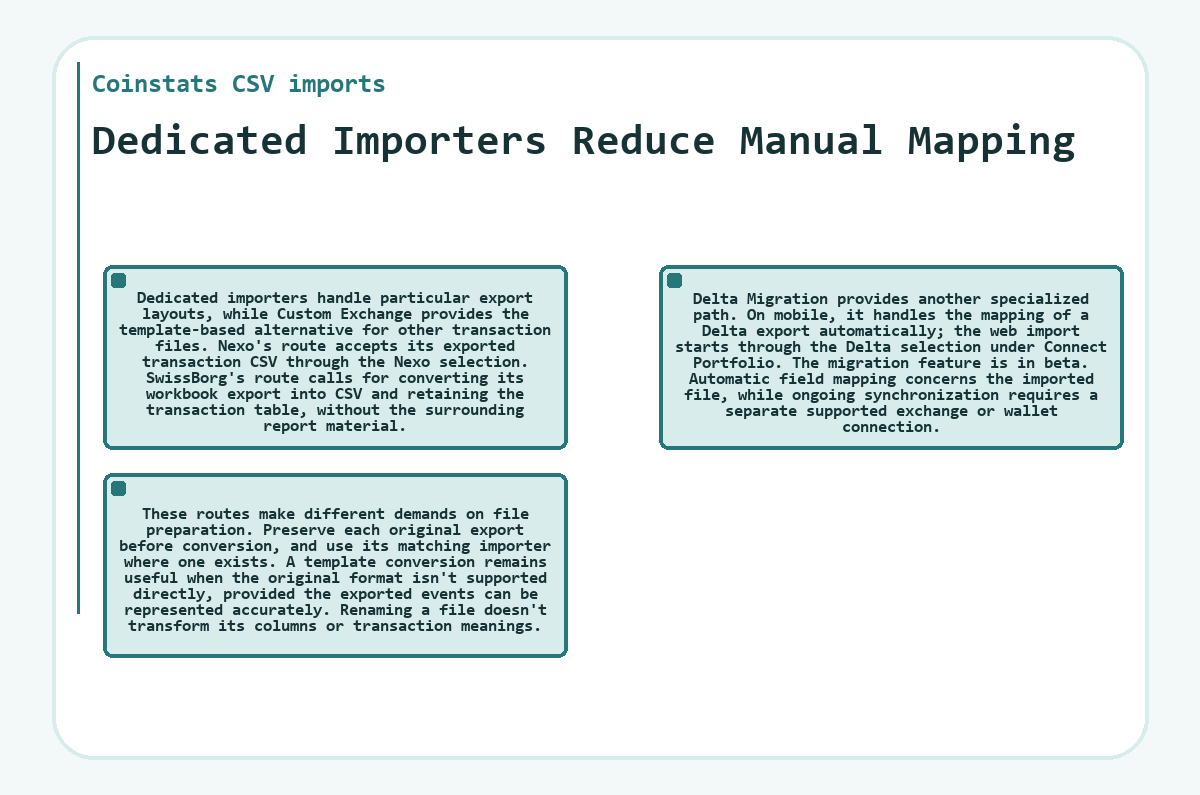
Dedicated importers handle particular export layouts, while Custom Exchange provides the template-based alternative for other transaction files. Nexo's route accepts its exported transaction CSV through the Nexo selection. SwissBorg's route calls for converting its workbook export into CSV and retaining the transaction table, without the surrounding report material.
Delta Migration provides another specialized path. On mobile, it handles the mapping of a Delta export automatically; the web import starts through the Delta selection under Connect Portfolio. The migration feature is in beta. Automatic field mapping concerns the imported file, while ongoing synchronization requires a separate supported exchange or wallet connection.
These routes make different demands on file preparation. Preserve each original export before conversion, and use its matching importer where one exists. A template conversion remains useful when the original format isn't supported directly, provided the exported events can be represented accurately. Renaming a file doesn't transform its columns or transaction meanings.
CSV Files, Manual Entry, and API Sync
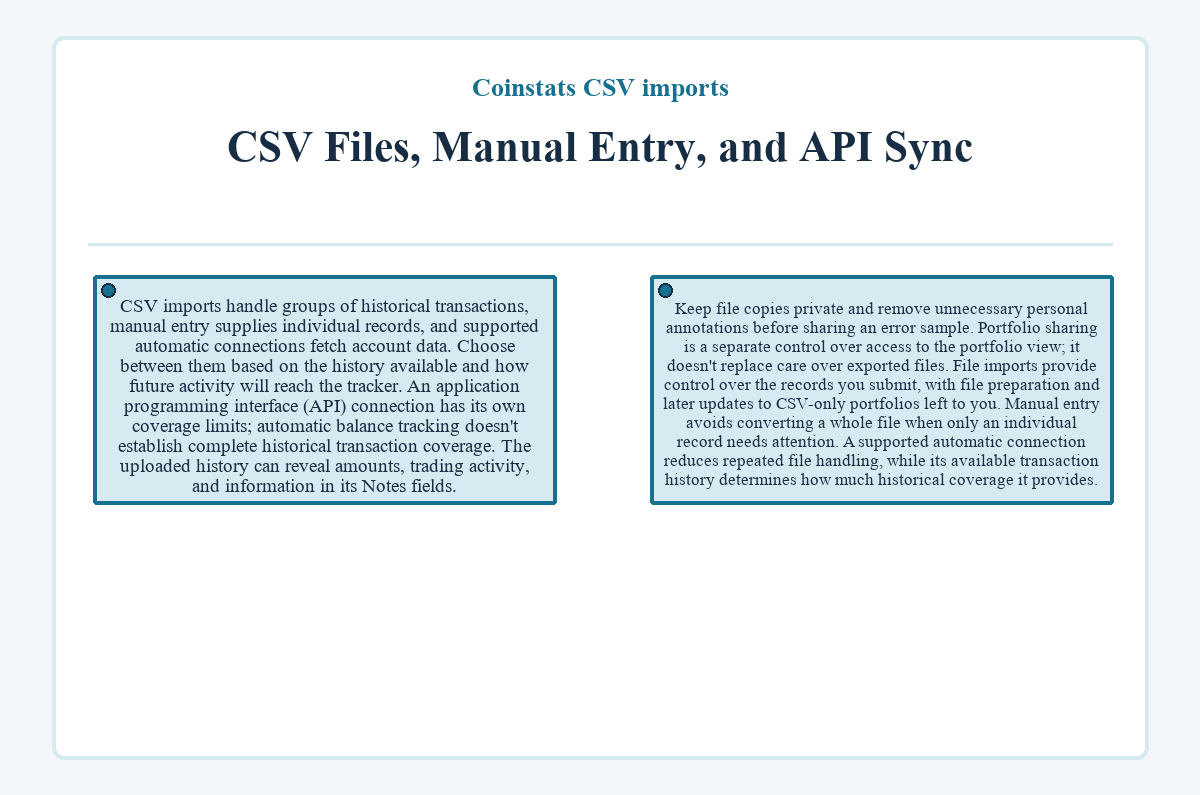
CSV imports handle groups of historical transactions, manual entry supplies individual records, and supported automatic connections fetch account data. Choose between them based on the history available and how future activity will reach the tracker. An application programming interface (API) connection has its own coverage limits; automatic balance tracking doesn't establish complete historical transaction coverage.
The uploaded history can reveal amounts, trading activity, and information in its Notes fields. Keep file copies private and remove unnecessary personal annotations before sharing an error sample. Portfolio sharing is a separate control over access to the portfolio view; it doesn't replace care over exported files.
File imports provide control over the records you submit, with file preparation and later updates to CSV-only portfolios left to you. Manual entry avoids converting a whole file when only an individual record needs attention. A supported automatic connection reduces repeated file handling, while its available transaction history determines how much historical coverage it provides.
Coinstats CSV imports - common questions
Is a Balances CSV Suitable for Rebuilding Transaction History?
A balance snapshot doesn't provide the transaction history needed to reconstruct purchases and sales. Coinstats offers Transaction History and Balances as separate export choices. For transaction-based importing, use records that contain the relevant event details and fit the selected importer. A current holding alone doesn't establish when it was acquired or its purchase price.
Can an Imported Notes Field Replace a Missing Fee or Price?
Notes don't replace the structured Price and Fee fields that describe a transaction's financial details. Keep those values in their matching fields when converting a file. An explanation in Notes can help identify a record, but it doesn't supply a missing acquisition cost to the price field. Preserve the original denominations when entering the financial values.
What Should I Do If a Delta CSV Import Contains Unidentified Coins?
For a Delta Migration import, turn off Hide Unidentified Coins in the portfolio settings to display entries that weren't recognized. Making them visible lets you review the affected records; it doesn't itself resolve their identities. If an asset remains unclear, contact in-app support with the relevant import details before treating its displayed data as correctly mapped.
Are CSV Portfolios Exempt From Subscription Capacity Limits?
CSV imports are subject to Coinstats' portfolio and transaction allowances. The subscription defines the account's available capacity, so consider that capacity when importing a large history or creating additional portfolios. An allowance for automatic sync requests measures a different activity and doesn't tell you how many transaction records the account can hold.
Where Can I Report a CSV File That Won't Import?
Coinstats provides in-app and on-site chat for CSV import questions. Describe the selected importer, the file's format, and the exact error that appears. If support needs an example, preserve the relevant headers and problematic row structure while avoiding unnecessary private information. Don't substitute exchange credentials for a transaction-file sample.
Does Deleting an Imported Transaction Undo the Original Exchange Trade?
Deleting a manual transaction removes a tracking record from the portfolio; it doesn't reverse the original exchange trade. Coinstats' transaction deletion feature applies to manually added records. Keep a copy of the underlying history before removing an entry, especially when the deletion corrects an import mistake rather than a duplicate.
Last updated ·